Technology
Update Onagofly Firmware on Mac OS X
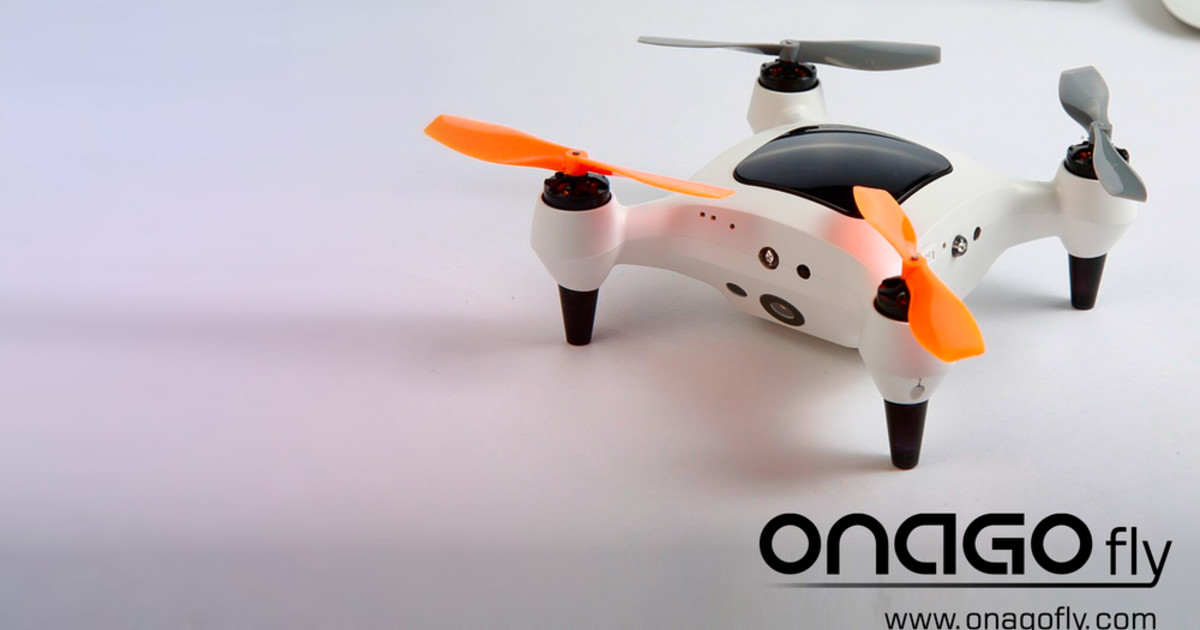
It is possible to update the firmware on an Onagofly micro drone on Mac OS X using the QGroundControl software. The download for the software can be found here: http://qgroundcontrol.org/downloads.
You will also need the firmware provided by Onagofly, which is currently version 630. The firmware (with modified file extension) can be found here: https://www.dropbox.com/s/7kwutj5dnbycr0k/ONAGOfly0630.px4?dl=1
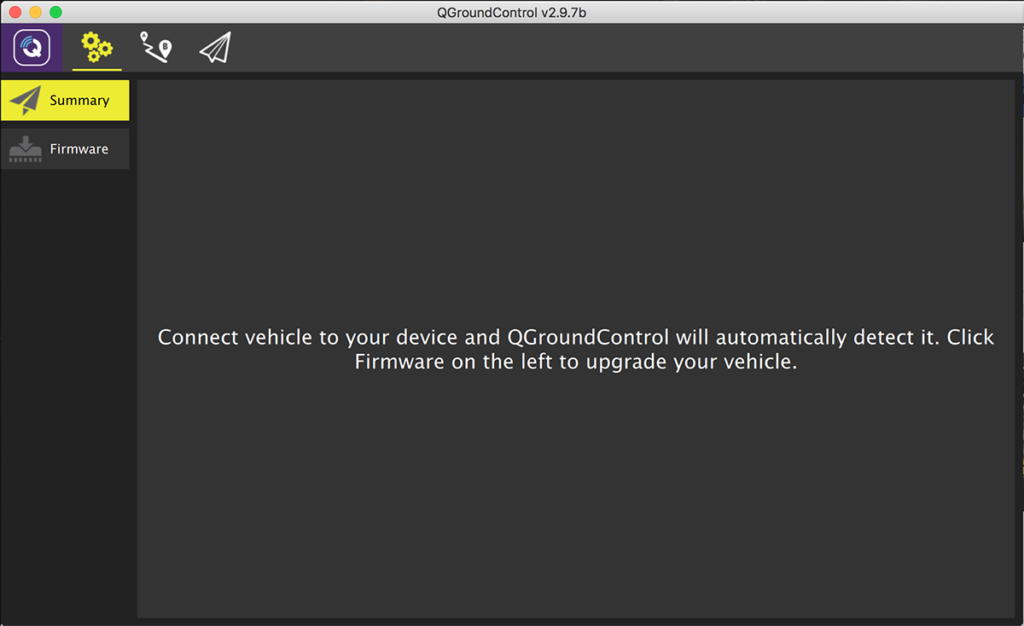
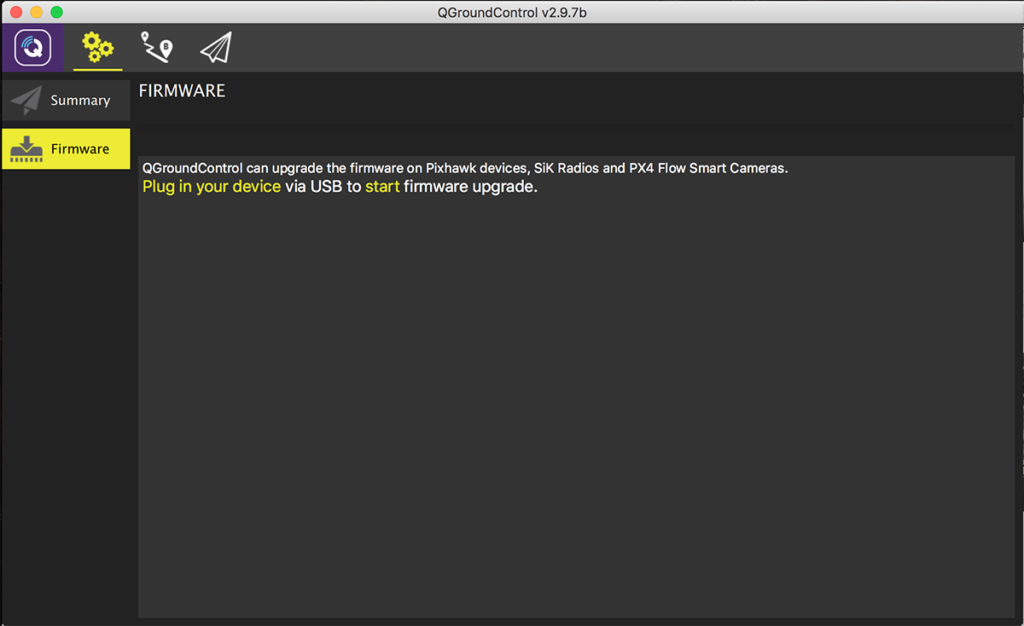
 It took several attempts to get the firmware to properly upload, so if it is unsuccessful, try again. When I was finally able to load the firmware, I first loaded the Beta ArduCopter stack, then the Onagofly. Good luck!
Step 1: Change firmware extension to px4
This step is not necessary if you downloaded the firmware using the link in this post, but by default the firmware file is namedONAGOfly0630.ong. This means you will need to rename it to ONAGOfly0630.px4 as the QGroundControl app will only allow you to select *.hex, *.bin, and *.px4 files, and since we are uploading firmware to the Pixhawk PX4 FMU...
Step 2: Prepare Drone
Leave the drone powered off, or disconnect the battery entirely if you are able, and connect a micro USB cable.Step 3: Open QGroundControl
Without connecting it to your computer, start up QGroundControl.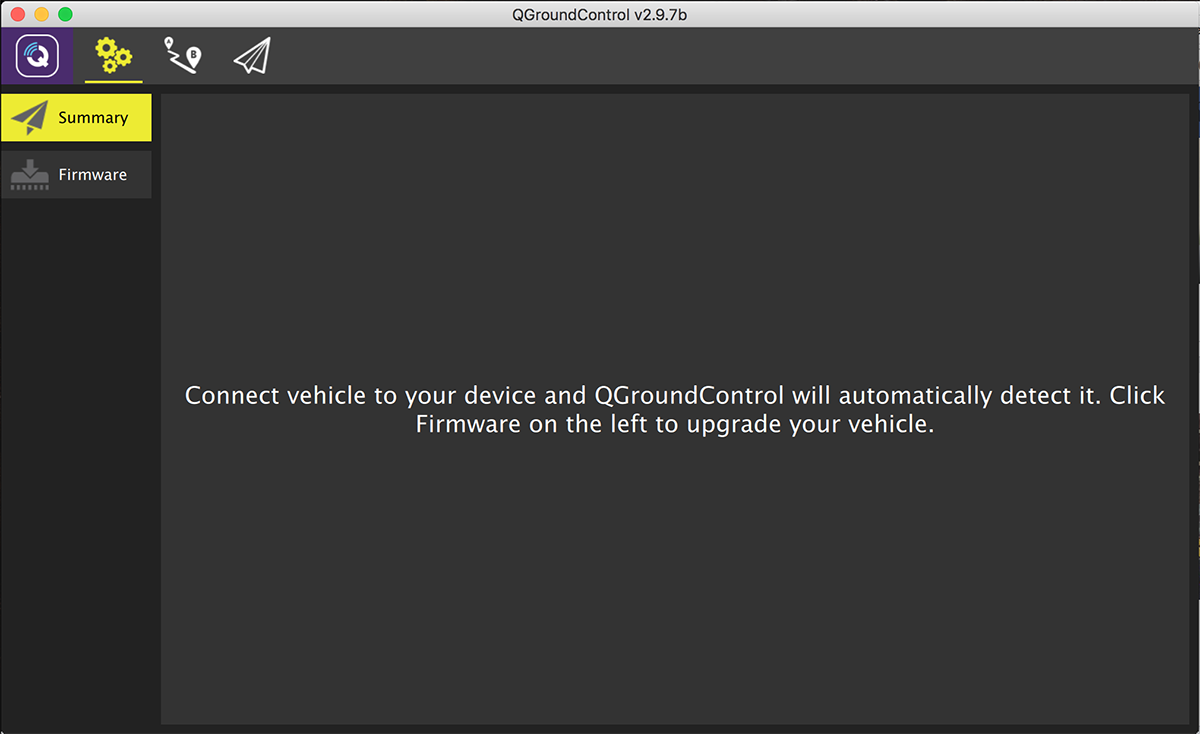
Step 4: Select "Firmware"
This is mode allows QGroundControl to update the firmware on the Onagofly. Plug in (or unplug and re-plug in) the USB cable to detect the Pixhawk flight controller.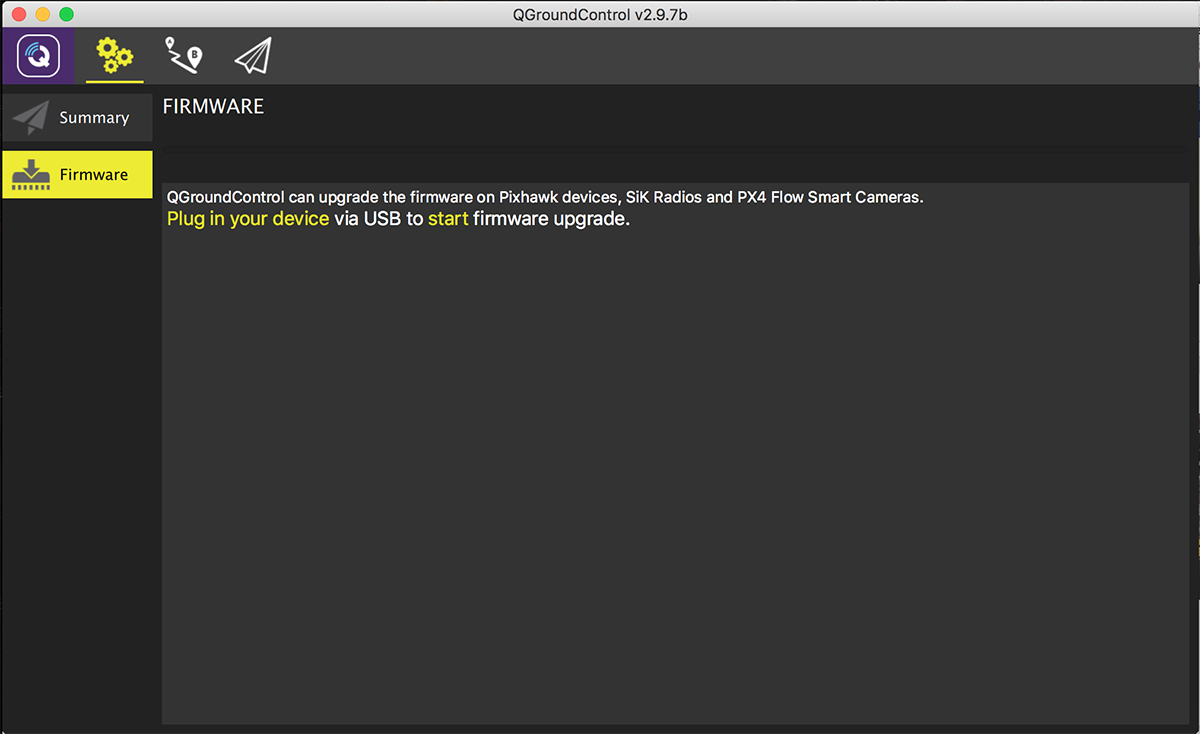
Step 5: Configure firmware update
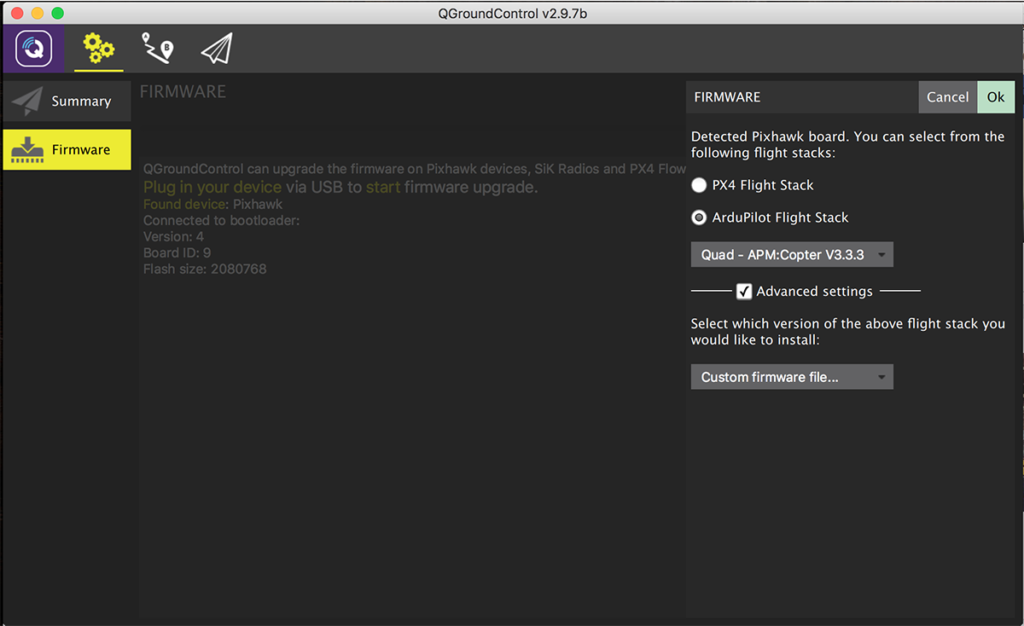
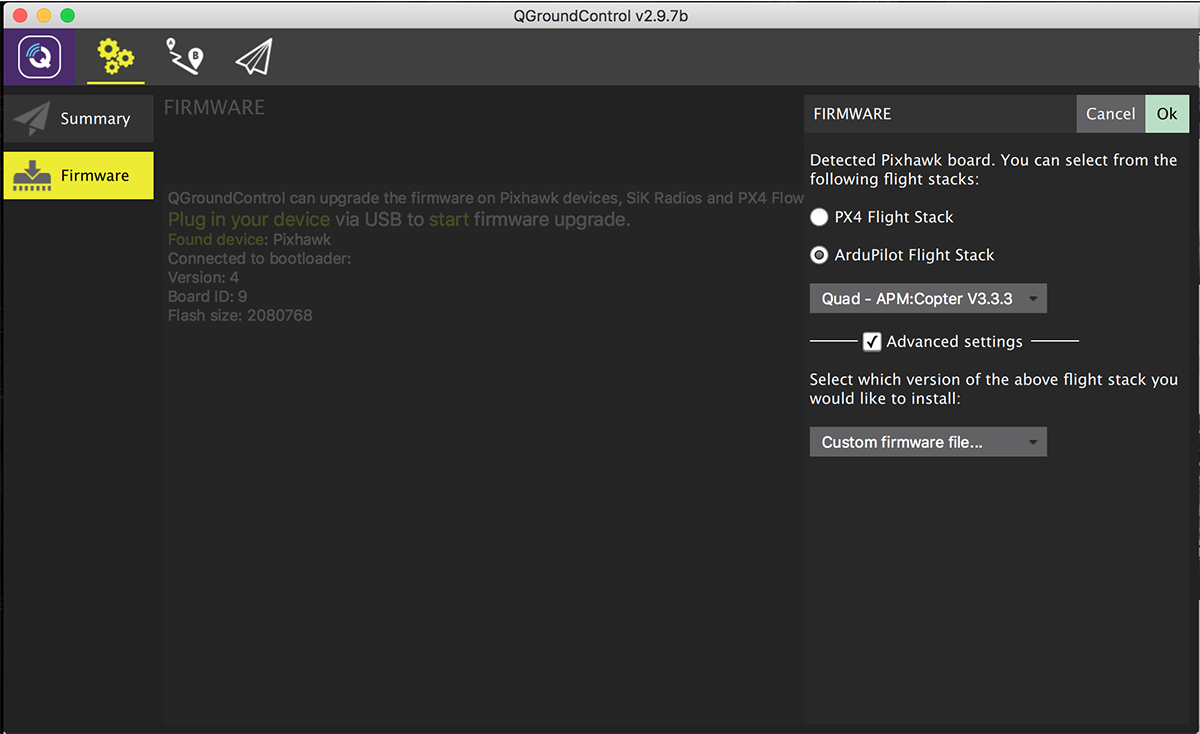
Once your device is detected, you will need to change the firmware settings to properly update using the Onagofly firmware, rather than the default PX4 or ArduPilot stack.- Select "ArduPilot Flight Stack"
- Quad - APM:Copter V3.3.3
- Check the "Advanced settings" box
- Choose "Custom firmware file..."
- Click OK.
Step 6: Select firmware file
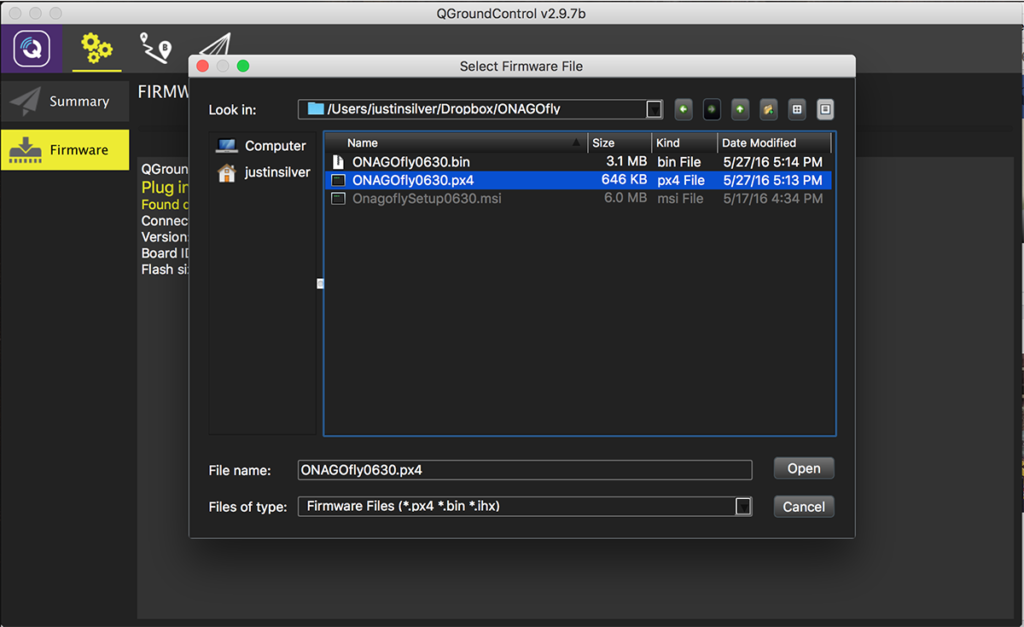
Navigate to the location of the ONAGOfly0630.px4 firmware file and select it.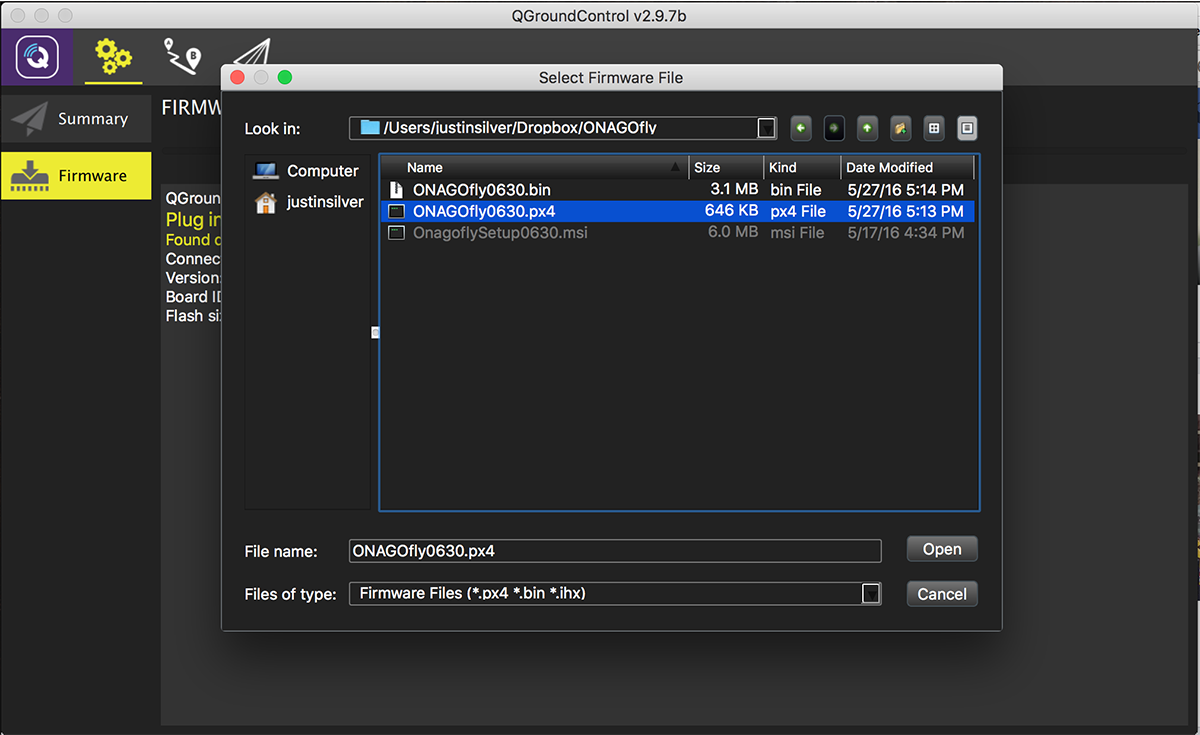
Step 7: Update Complete
You should see some status updates followed by a message saying "Upgrade complete". A few seconds later you should hear the startup noise, and the device will be detected by QGroundControl.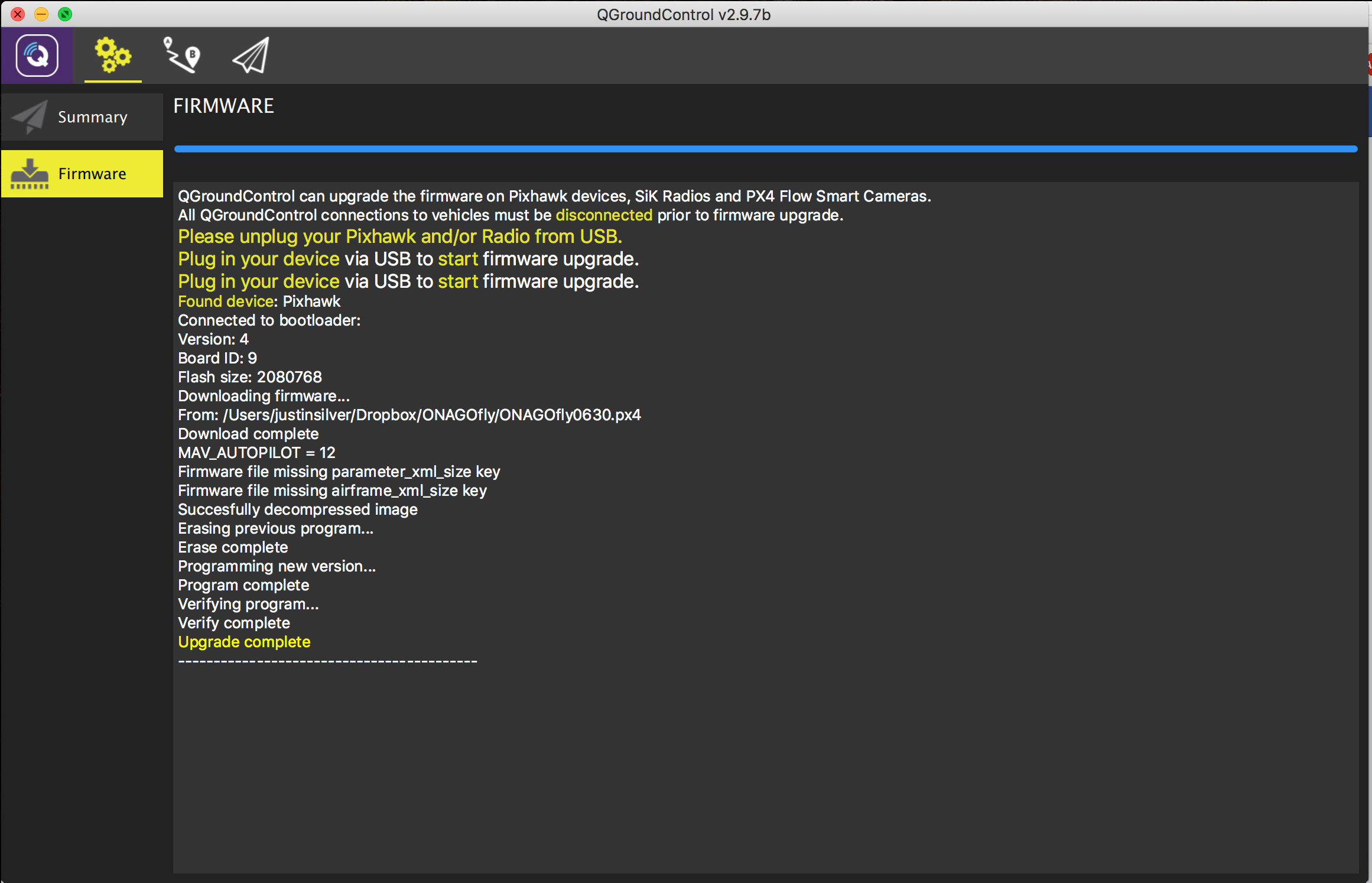 It took several attempts to get the firmware to properly upload, so if it is unsuccessful, try again. When I was finally able to load the firmware, I first loaded the Beta ArduCopter stack, then the Onagofly. Good luck!
Conversation 30
Flight Data > Info View > Messages. This is what it shows for me after the firmware upgrade: [text] [MAV 001:1] ArduCopter V3.2.1 zddll (HEAD) [MAV 001:1] PX4: HEAD NuttX: HEAD [MAV 001:1] Frame: QUAD [MAV 001:1] PX4v2 00290041 3335510C 37343436 [/text] I can't guarantee that I will post every update, but I can try :)ONAGOfly630.px4(the renamedONAGOfly630.ong) is a JSON file and looks contains the following: [javascript] { "board_id": 9, "magic": "PX4FWv1", "description": "Firmware for the PX4FMUv2 board", "image":"... long encoded text string ...", "build_time": 1464334813, "summary": "PX4FMUv2", "version": "0.1", "image_size": 765072, "git_identity": "", "board_revision": 0 } [/javascript] Theimageproperty is where it gets the data to write to the flash I imagine, you just need to save the text file to your computer, then select it when choosing custom firmware in QGroundControl.